
Discover the best CNC design software for beginners in 2025 with expert reviews on free and pro CAD CAM tools for woodworking and prototyping.
Understanding CNC Design Software Basics for New Users
If you’re just starting with CNC design software, it helps to understand the basics before diving in. At its core, CNC design tools fall into two main categories: CAD and CAM. CAD, or Computer-Aided Design, focuses on creating the actual designs—think of it as drawing your project in 2D or modelling it in 3D. CAM, or Computer-Aided Manufacturing, takes those designs and converts them into instructions (called G-code) that tell the CNC machine how to cut, carve, or mill your material. Some software combines both CAD and CAM in one integrated package, making workflow smoother and more efficient.
When searching for CNC design software, key features matter:
- Vector drawing and 2D design tools for precise shapes and outlines
- 3D modelling and relief creation if you want more complex, textured projects
- Simulation previews so you can see how your project will cut before starting the machine
- Material libraries tailored for wood, plastics, or metals to optimise cutting settings
- Flexible export formats compatible with popular CNC controllers and machines
Beginners often face a learning curve around mastering these features. If you’re using a Mac, compatibility matters—many top CNC software options are Windows-based, but there are some strong Mac-compatible choices and workarounds like virtualisation or dual-boot setups. Starting simple and testing free trials can help.
The CNC hobbyist market is booming, especially with affordable CNC routers becoming widely available. Now is the perfect time to jump in and explore CNC design software. From sketching a design on your computer to converting it into code and cutting it with your CNC machine, the process feels more accessible than ever. Understanding that end-to-end workflow—from creating your design all the way to the final cut—will set you up for success on your CNC journey.
Top 7 CNC Design Software Recommendations for 2025

Choosing the right CNC design software can make a huge difference in your workflow and results. Here’s a quick look at the top 7 options for 2025, with an overview, pros, cons, pricing, and who each one is best for.
Carbide Create
Overview: A beginner-friendly, intuitive CAD/CAM software great for 2D and basic 3D design.
Pros: Free version available, easy to use, good for hobbyists and small projects.
Cons: Limited advanced 3D features, not great for complex designs.
Pricing: Free for basics, $149 for Pro version with more features.
Best for: Beginners and users of Carbide 3D machines looking for straightforward design and toolpath creation.
Vast tip: Use Carbide Create’s simple interface to speed up basic project designs without distractions.
Easel
Overview: Web-based CNC software that combines design and CAM in one platform.
Pros: Super easy to start with, no installation needed, great for quick projects.
Cons: Limited to Easel-supported machines, fewer export options.
Pricing: Free basic plan, $40/month for Pro with extra features.
Best for: Hobbyists and educators wanting instant use without software hassle.
Vast tip: Take advantage of Easel’s built-in material library to optimise cutting settings.
Vectric VCarve Pro
Overview: Powerful CNC software focused on 2D and 3D carving with excellent toolpath control.
Pros: Robust features, detailed vector editing, great for woodworkers.
Cons: Steeper learning curve, more expensive than simpler tools.
Pricing: Around $699 one-time purchase.
Best for: Serious hobbyists and small businesses needing advanced carving options.
Vast tip: Use VCarve Pro’s extensive tutorials to master complex toolpaths faster.
Fusion 360
Overview: All-in-one CAD, CAM, and CAE software from Autodesk suitable for complex projects.
Pros: Professional-grade features, free for hobbyists/startups, strong 3D modelling and simulation.
Cons: Can be overwhelming for beginners, requires decent computer specifications.
Pricing: Free for personal use, $60/month for commercial.
Best for: Users aiming to combine product design and CNC machining in one tool.
Vast tip: Leverage Fusion 360’s cloud files to work across devices anywhere.
Carveco Maker
Overview: Versatile software focused on art and sign making with detailed 3D modelling.
Pros: Good vector and bitmap tracing, supports complex reliefs.
Cons: Higher cost and learning curve for casual users.
Pricing: Starts around $495/year subscription.
Best for: Artists and makers creating highly detailed relief carvings.
Vast tip: Use Carveco’s extensive material library to tweak your toolpaths precisely.
Inkscape
Overview: Free, open-source vector design software often used to create CNC-ready SVG files.
Pros: Completely free, great for 2D vector drawing, lots of community plugins.
Cons: No built-in CAM or G-code generator, relies on third-party tools.
Pricing: Free.
Best for: Beginners learning vector design or those pairing with separate CAM programmes.
Vast tip: Export your designs as SVG and import them into CNC CAM software like Carbide Create.
Aspire by Vectric
Overview: High-end CNC software packing advanced 3D modelling and detailed toolpath capabilities.
Pros: Extensive 3D tools, great for artistic and specialised projects.
Cons: Highest price among Vectric products.
Pricing: Around $1,560 one-time purchase.
Best for: Professional craftsmen and businesses producing complex 3D work.
Vast tip: Invest time in Aspire’s training videos to unlock its full potential.
Interactive Comparison Table
| Software | Price Range | Features | Ease of Use | Best For |
|---|---|---|---|---|
| Carbide Create | Free – $149 | 2D/Basic 3D, Toolpaths | Very Easy | Beginners, Hobbyists |
| Easel | Free – $40/month | Design + CAM online | Very Easy | Quick Projects, Educators |
| Vectric VCarve Pro | $699 | Advanced Vector & Toolpath Control | Moderate | Woodworkers, Small Business |
| Fusion 360 | Free – $60/month | Full CAD/CAM/CAE | Moderate to Hard | Professionals, Complex CAD |
| Carveco Maker | $495/year | 3D Modelling, Relief Carving | Moderate | Artists, Sign Makers |
| Inkscape | Free | 2D Vector Design | Moderate | Design Preparation, Vector Editing |
| Aspire by Vectric | $1,560 | Advanced 3D, Complex Toolpaths | Hard | Pros, High-detail Projects |
These CNC design software options cover a wide range of needs, from simple hobby projects to advanced commercial use. Make sure to test free trials when available to see what fits your workflow best.
How to Choose the Right CNC Design Software for Your Needs

Picking the right CNC design software depends on a few key factors like your budget, experience level, and what machine you’re using. Here’s a simple decision framework to help you decide:
- Budget: Are you looking for free software or are you ready to invest? Some options offer solid features at no cost, while others require a one-time or subscription fee.
- Skill levelBeginners should look for easy-to-learn tools with plenty of tutorials. Advanced users might want more customisation and 3D capabilities.
- Machine compatibilityMake sure the software supports your CNC controller and file formats. For example, if you run a 3018 kit, look for software with GRBL support to avoid headaches.
- Project typeAre you doing 2D vector cutting, 3D carving, or complex relief work? Some software are better suited for specific tasks.
- Cost modelsMany software options offer free trials or limited free versions. Testing before buying helps ensure the tool fits your needs.
Local habits and popular choices
For many hobbyists working with popular kits like the 3018, GRBL compatibility is crucial. Also, affordable CNC prototyping tools are on the rise with a thriving home shop community. Picking software that works out of the box with these machines saves time and frustration.
Pro tip
Take advantage of Vast’s free trial templates—their ready-made projects let you test features and workflow with your specific setup before committing. This hands-on trial often reveals which software clicks best with your style.
Quick checklist for choosing CNC design software
- Does it fit your budget?
- Is it beginner-friendly or advanced enough?
- Is it compatible with your CNC machine?
- Does it support your desired project types?
- Can you test it first with free trials or templates?
Downloadable PDF checklist available for easy reference when you’re ready to compare your options.
Step by Step Tutorial Getting Started with Your First CNC Design
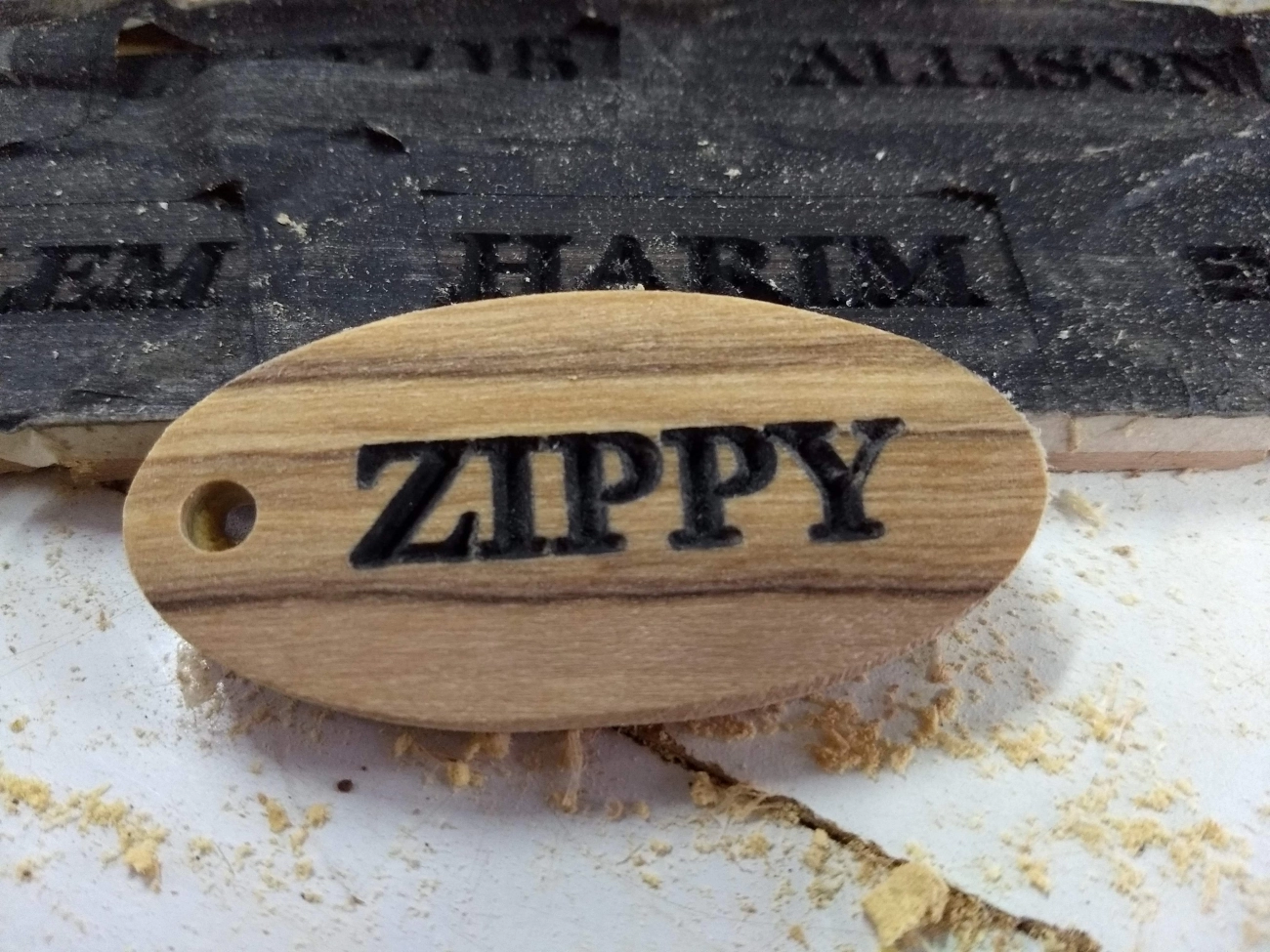
Let’s walk through a simple project to carve a custom keychain. This hands-on guide will get you comfortable with CNC design software and your machine.
Step 1 Import Your Sketch Design
Start by creating or importing a basic 2D vector sketch of your keychain shape. Most CNC design software accepts common formats like SVG or DXF. Keep your design clean—avoid overlapping lines or too much detail for your first cut.
Step 2 Add Toolpaths and Simulate
Next, set up your toolpaths. This tells your CNC router how to move to carve your design. Choose the right bit size and cutting depth for your material, then run a simulation preview. This helps you catch mistakes before you cut.
Step 3 Export G Code and Run on Your CNC Machine
Once your toolpaths look good, export the G code—the instructions your CNC machine needs to follow. Load this into your machine’s controller software and start the cut. Make sure to double-check your scale and units match your machine settings.
Troubleshooting Common Errors
- Wrong Scale: Double-check units are consistent (inches vs. millimetres).
- Toolpath Issues: Verify that tool depths aren’t too deep for your material thickness.
- Machine Movement: Clear your workspace and ensure the CNC zero point is set correctly.
Keep Going With Confidence
Don’t worry if your first cut isn’t perfect. There are tons of tutorials, templates, and CNC communities online to support you. With the right tools and persistence, you’ll have a custom-made project ready before you know it. Your first successful carve is just a few clicks away!
Advanced Tips and Best Practices for CNC Design Success
To get the most out of your CNC design software and machine, here are some advanced tips to boost efficiency and quality.
Optimize Your Workflow
- Use nesting features to arrange your designs and cut parts with minimal material waste. This saves money and reduces cleanup.
- Adjust feed speeds based on your material and bit size. Going too fast can cause rough cuts; too slow wastes time. Find the sweet spot for each project.
- Keep regular backups of your designs and toolpaths. CNC crashes happen, and losing files can set you back days.
Grow Your Hobby Into a Side Hustle
- If you’re selling on Etsy or local markets, focus on unique, quality designs that show off your CNC skills. Use your software’s 3D relief and vector design tools to create standout pieces.
- Maintain consistent output by creating templates and preset toolpaths in your software. This speeds up production and keeps your work uniform.
Tap Into Community Resources
- Join Reddit’s r/CNC and forums like Vast for support and inspiration. You’ll find free templates, troubleshooting tips, and updated workflows from CNC pros and beginners alike.
Future-Proof Your Skills
- Keep an eye on emerging tech like AI-powered design tools that convert text to 3D reliefs. These integrations are changing how simple it is to create complex designs, making CNC more accessible and creative.
Mastering these tips helps ensure your CNC projects run smoother and your designs shine, whether for personal use or turning your hobby into a small business.
 English
  Chinese
  Spanish (Peru)
  German
  Korean
  Spanish (Spain)
  Italian